> ## Documentation Index
> Fetch the complete documentation index at: https://ampersand-24eb5c1a-docs-troubleshooting.mintlify.site/llms.txt
> Use this file to discover all available pages before exploring further.
# Housecall Pro
## Checklist before you start
Confirm the following:
* You are a Housecall Pro **Admin** user.
* Your Housecall Pro account has a **MAX subscription**.
## 1. Generate your Housecall Pro API key
Follow these steps to generate your Housecall Pro API key.
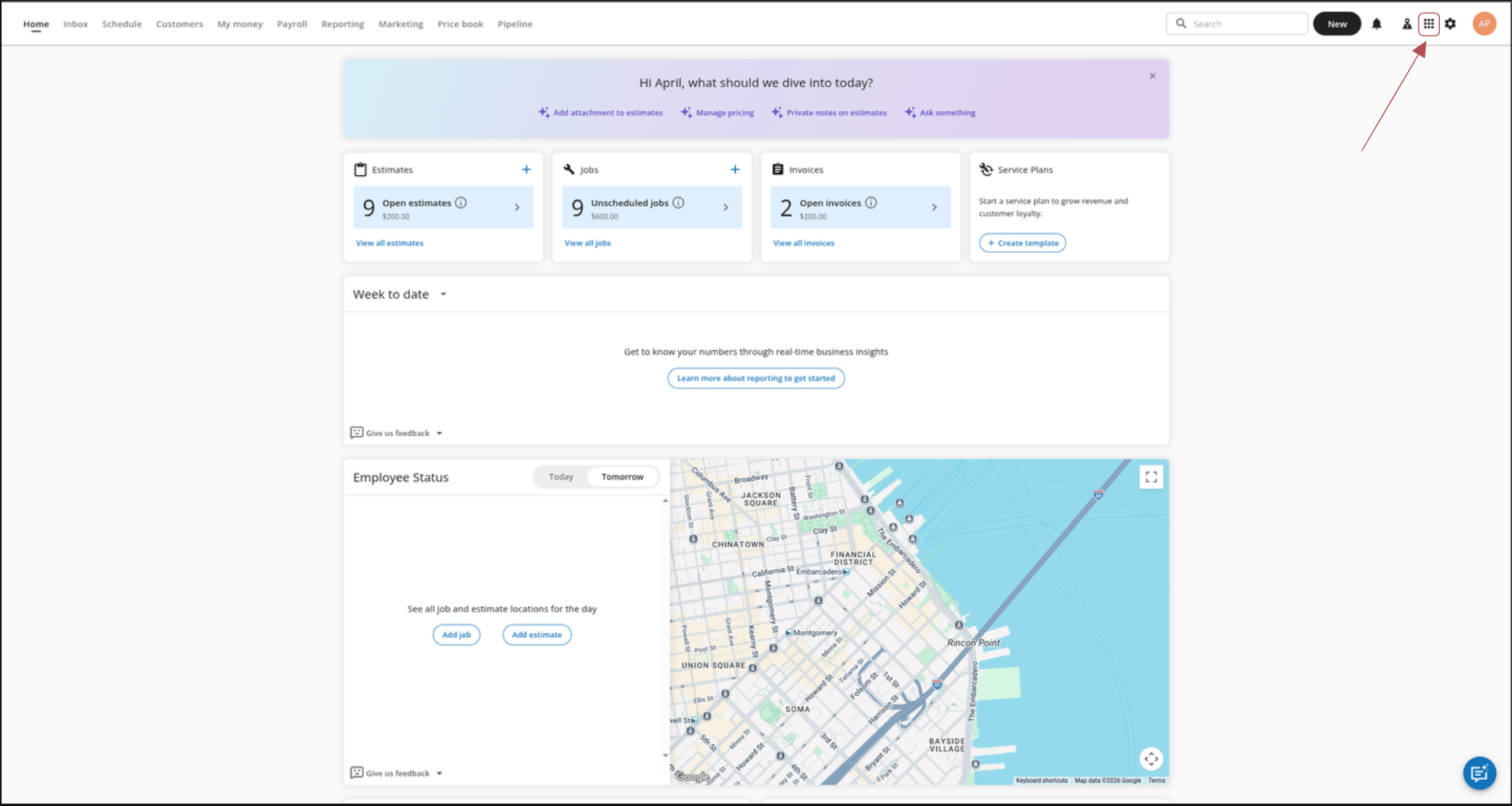
1. Click the **My Apps** icon (3x3 grid) in the top-right corner.
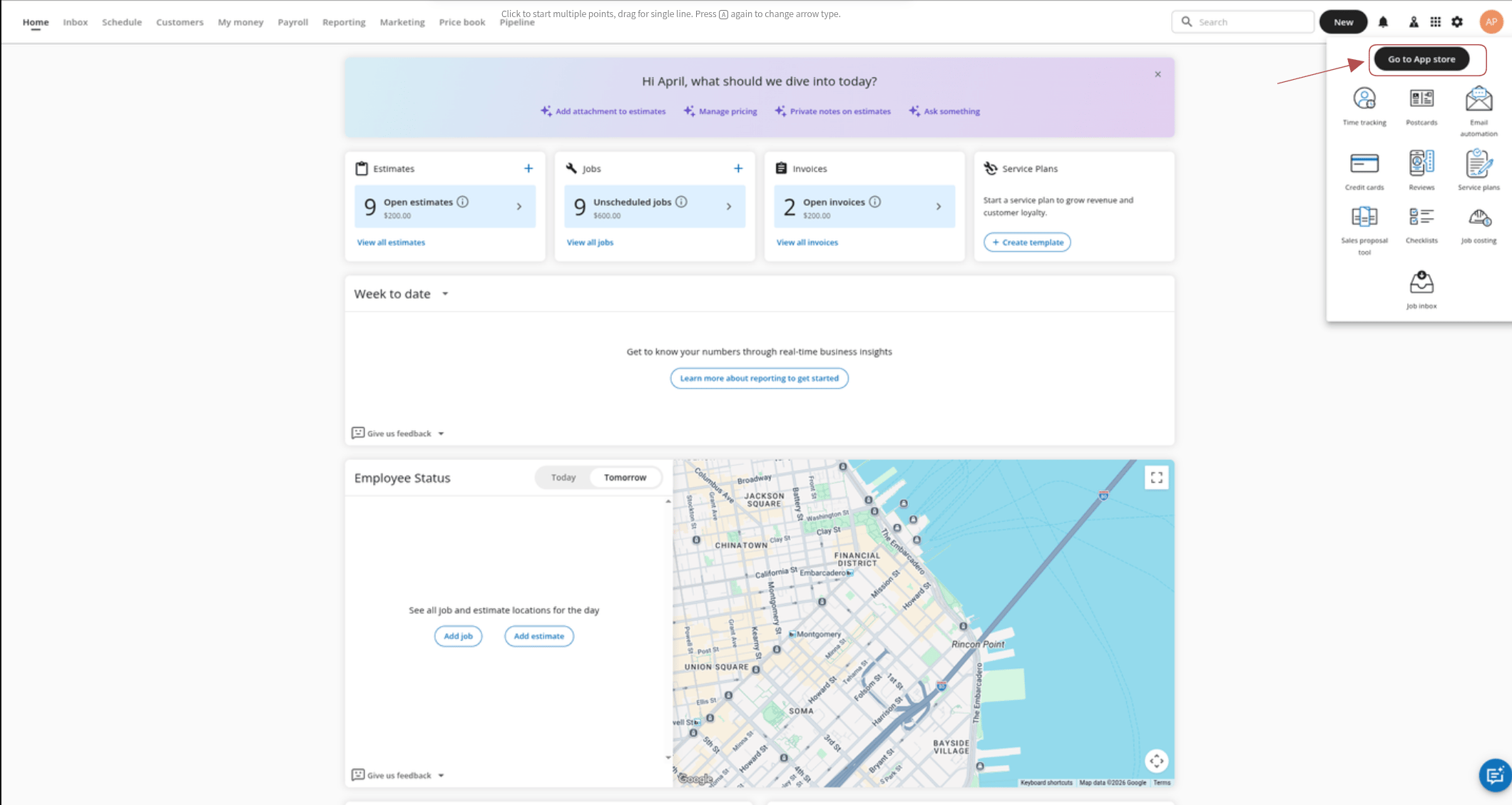
 2. Click **Go to App Store**.
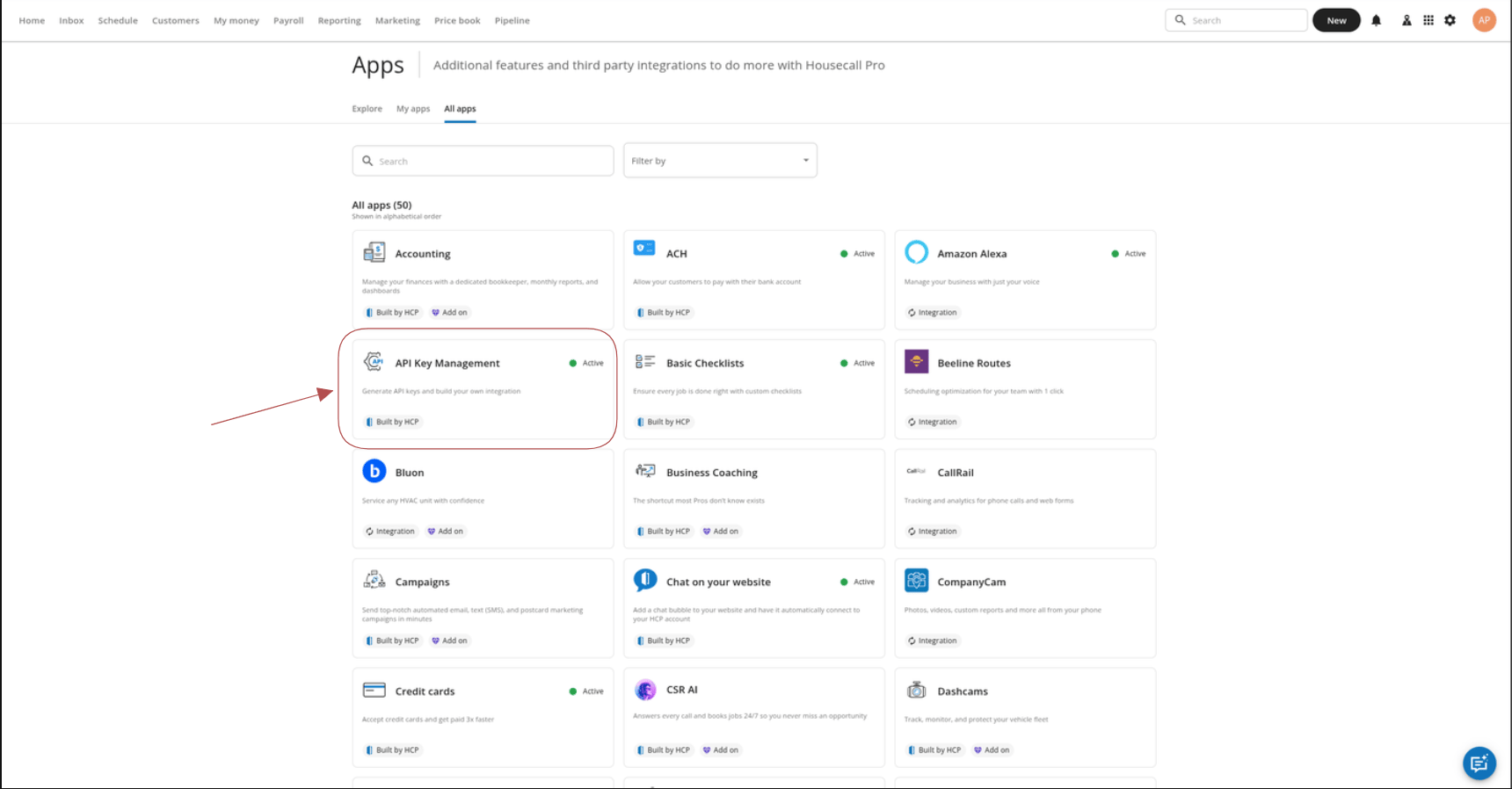
 3. Under **My Apps**, find and open the **API Key Management** app card.
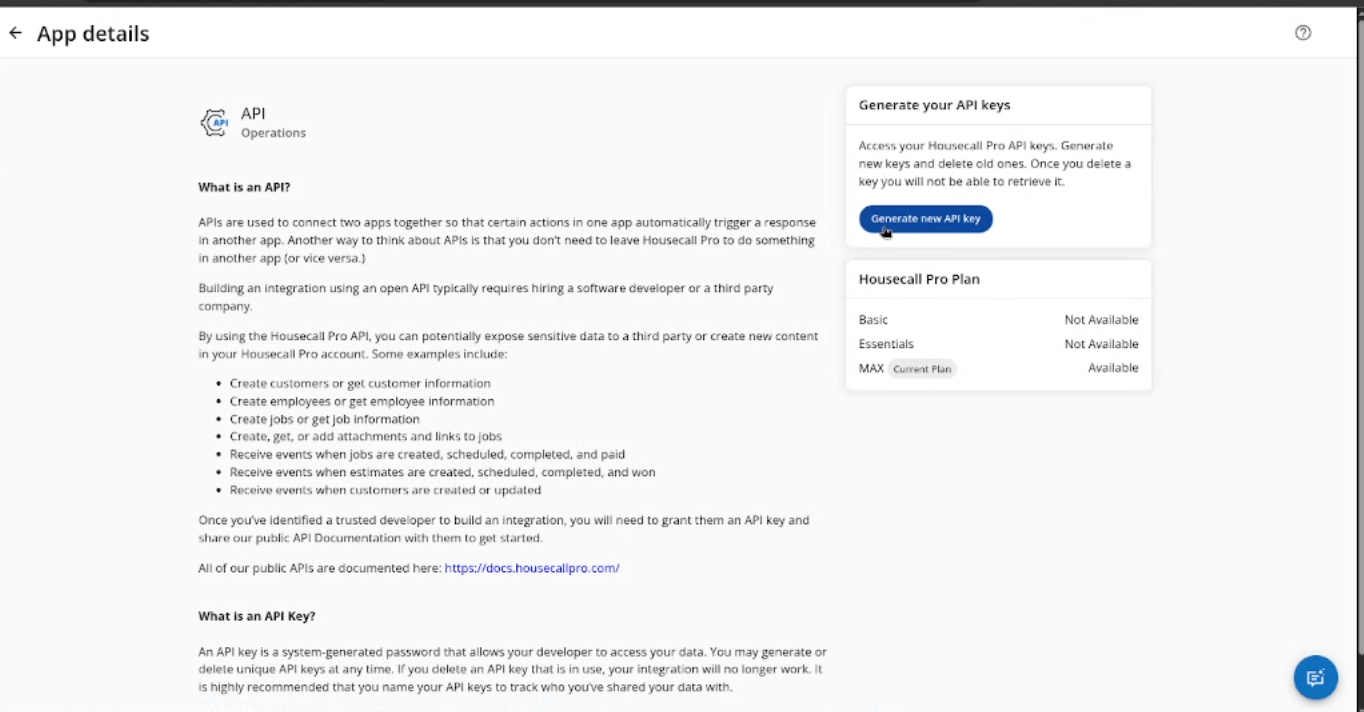
 4. Click **Generate API Key**.
 5. Enter a descriptive name for the key.
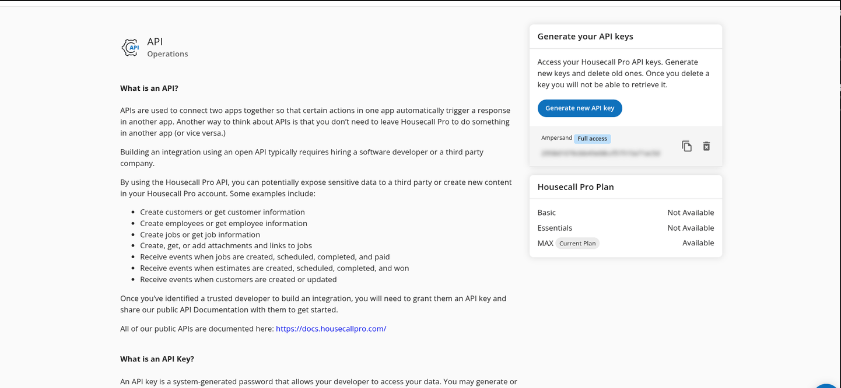
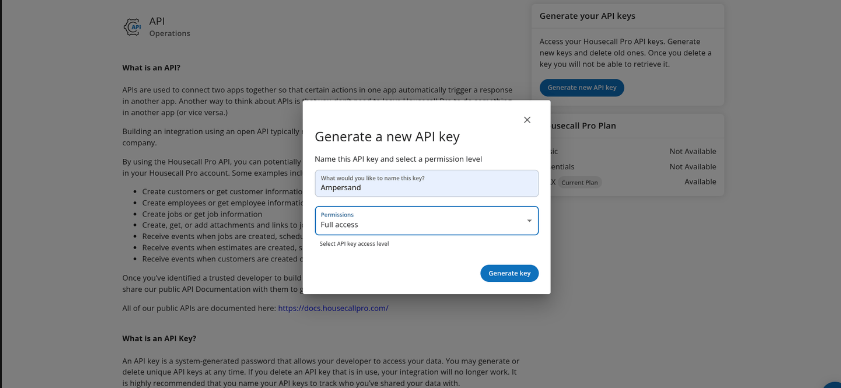 6. Copy the API key and store it securely.
 ## 2. Set up webhooks for real-time updates (Subscribe Actions)
Skip this section if your developer did not give you a webhook URL, or if you do not need real-time updates.
Follow these steps to set up webhooks in Housecall Pro.
1. Click the **My Apps** icon (3x3 grid) in the top-right corner.
2. Click **Go to App Store**.
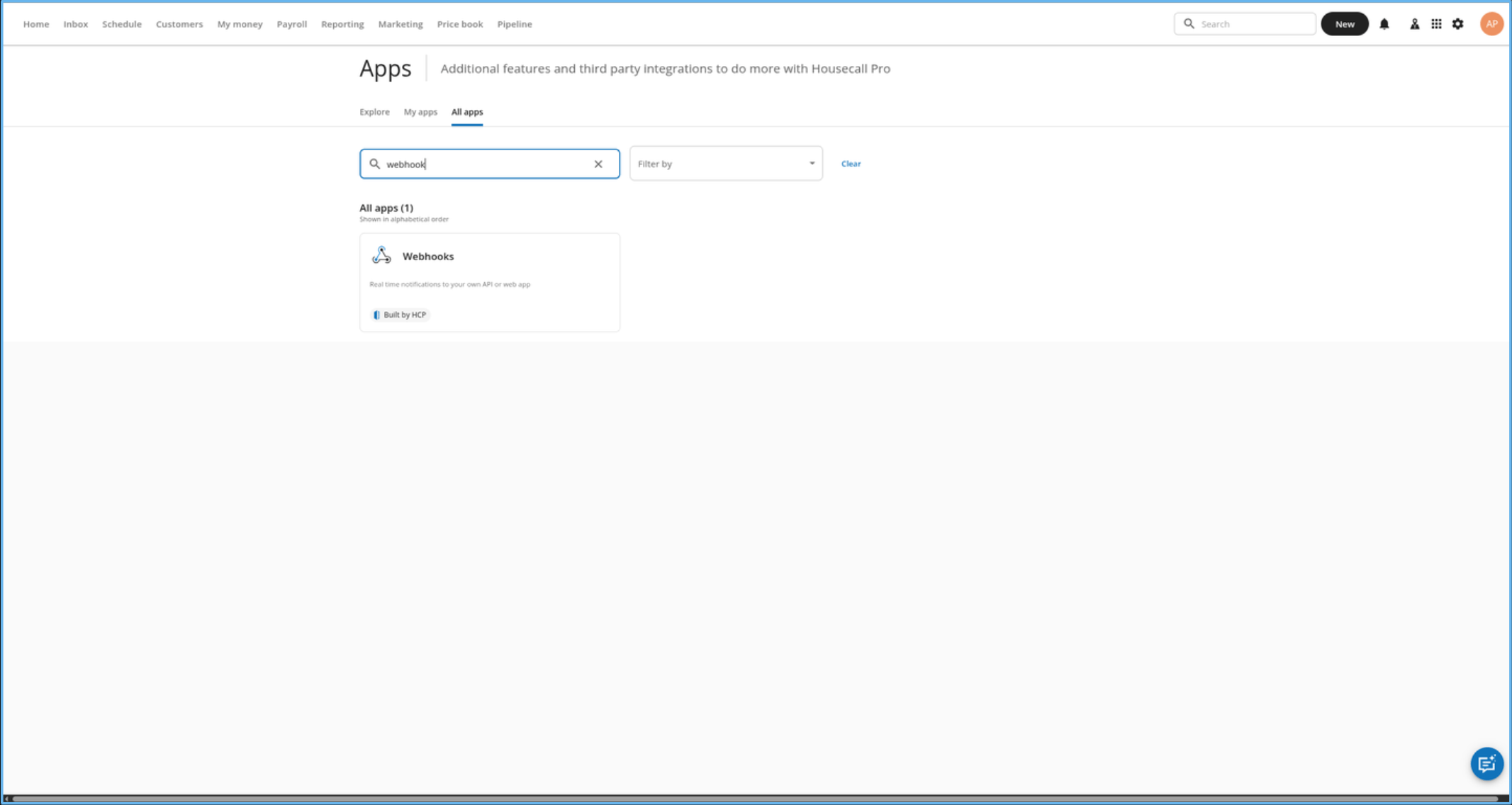
3. Under **All apps**, find and open **Webhooks**.
## 2. Set up webhooks for real-time updates (Subscribe Actions)
Skip this section if your developer did not give you a webhook URL, or if you do not need real-time updates.
Follow these steps to set up webhooks in Housecall Pro.
1. Click the **My Apps** icon (3x3 grid) in the top-right corner.
2. Click **Go to App Store**.
3. Under **All apps**, find and open **Webhooks**.
 4. Set Webhooks to **Active**, paste the link the developer gave you into the **Webhook URL** field, then click **Save**.
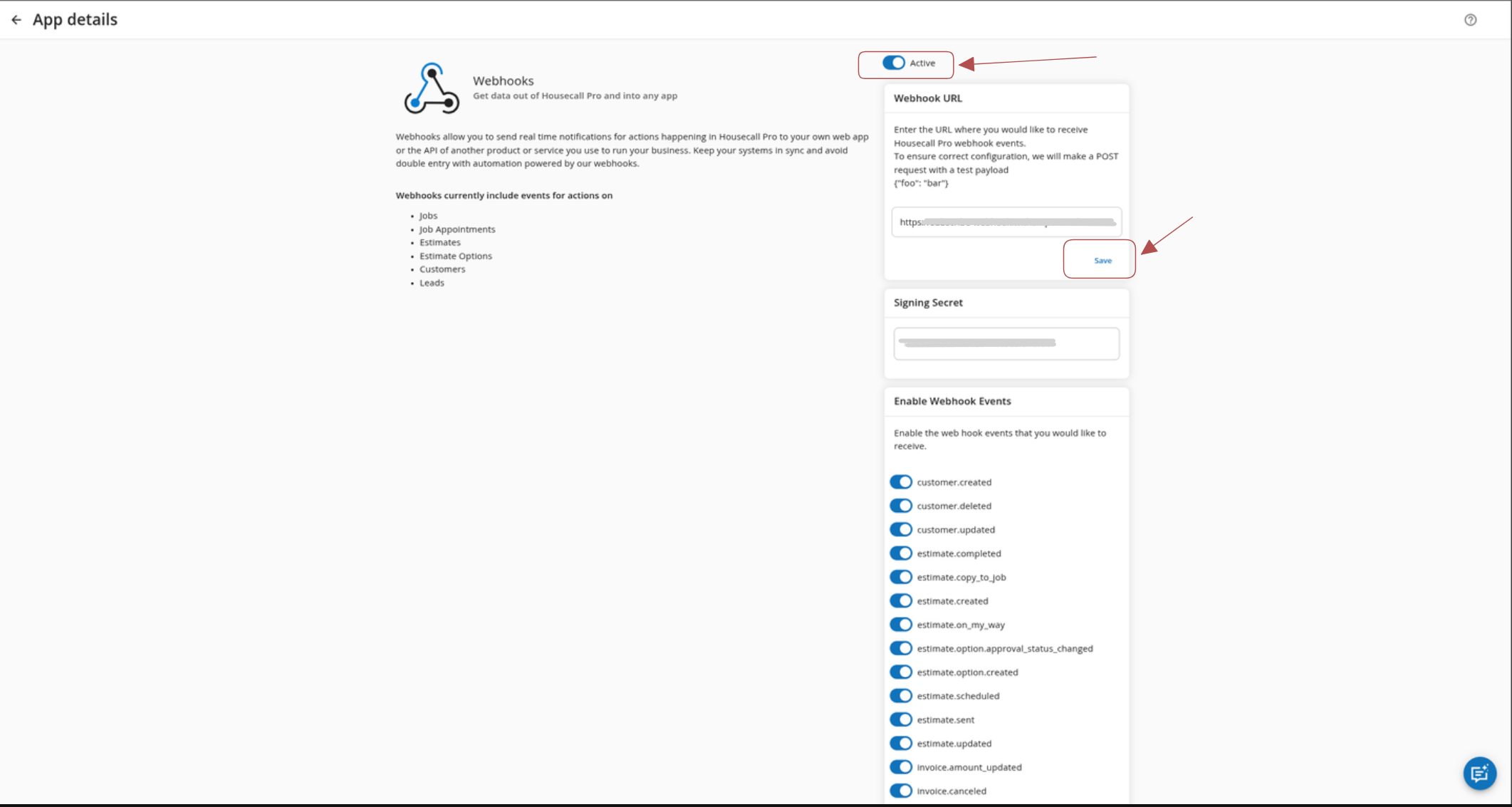 5. Enable the webhook events that you want to subscribe to, then click **Save**.
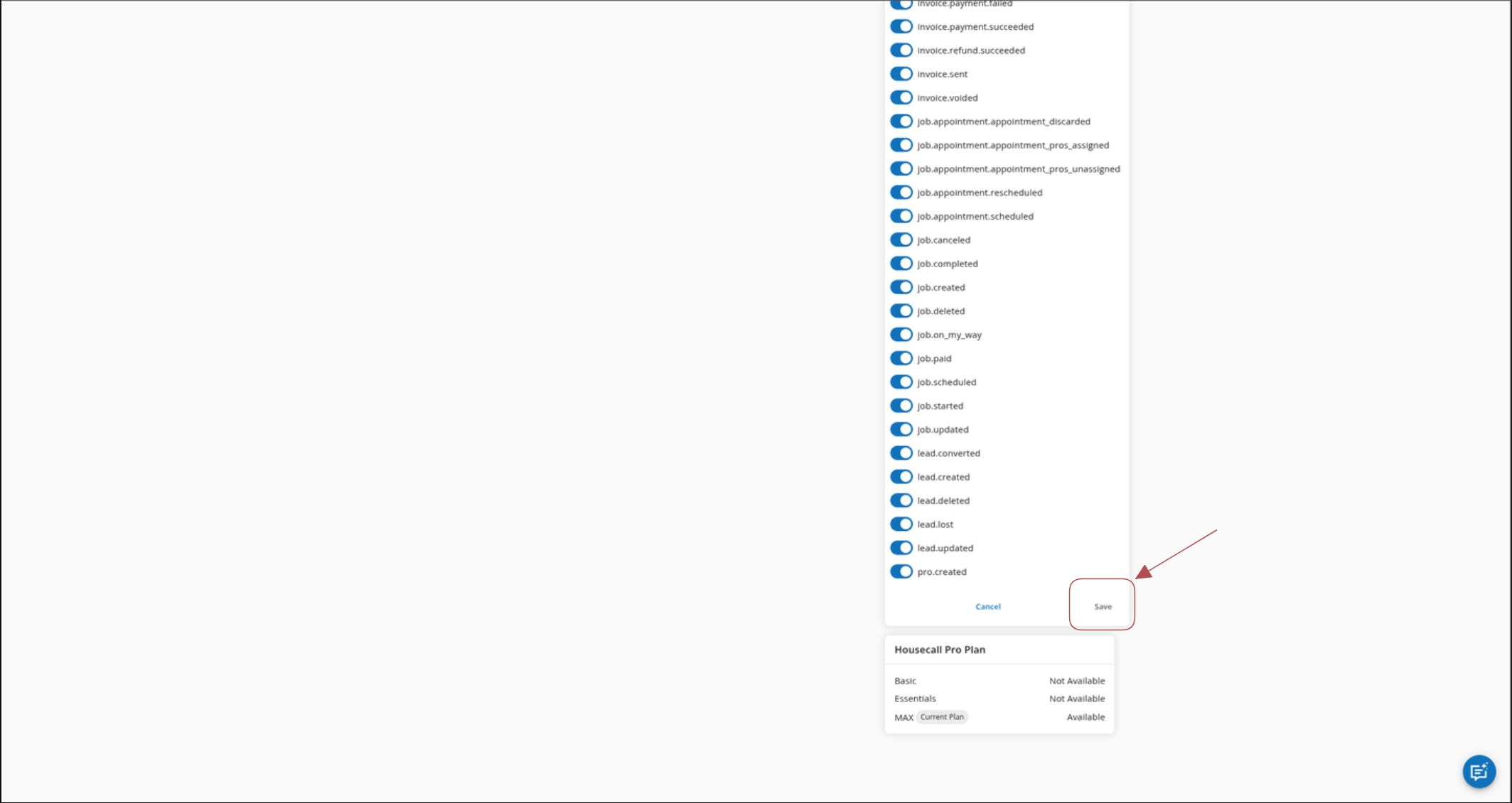 **`pro.created`** in Housecall Pro means a new **employee**; the connected
product may display it as **`employee.created`**.
## For official setup details, see:
* [Housecall Pro API Overview](https://help.housecallpro.com/en/articles/8505035-api-overview#h_3b0cd3e648)
* [Housecall Pro Webhooks Setup](https://help.housecallpro.com/en/articles/5683520-how-to-enable-webhooks)
**`pro.created`** in Housecall Pro means a new **employee**; the connected
product may display it as **`employee.created`**.
## For official setup details, see:
* [Housecall Pro API Overview](https://help.housecallpro.com/en/articles/8505035-api-overview#h_3b0cd3e648)
* [Housecall Pro Webhooks Setup](https://help.housecallpro.com/en/articles/5683520-how-to-enable-webhooks)